Starting Up
Club House sign-on computer
Turn on the sign-on computer and login.
A shortcut to the DInghyRacing page is on the desktop:
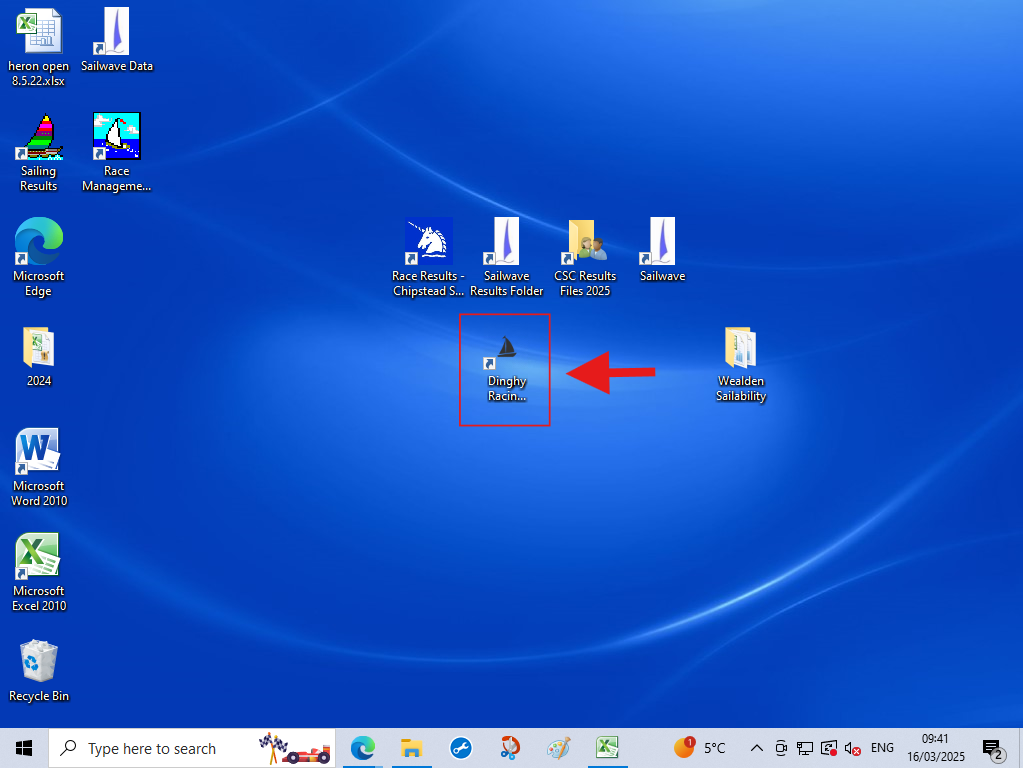
The login details have been saved.
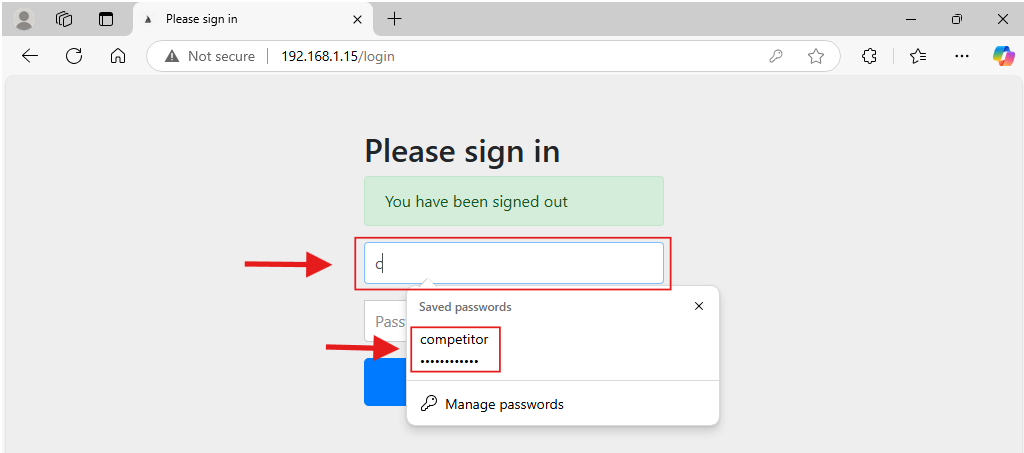
Type ‘c’ into the username field and then select the ‘competitor’ login from the saved choice.
Race Hut
Turn on computers
Both the computers in the race hut will start when the power is turned on at the wall, by the door into the race hut from the club house.
If the computers do not start:
- Check power is on to the race hut.
- Check the sockets on the multi-socket at the back of the desk are powered on.
- Check the power cables are plugged into the Raspberry Pis.
- Check the display cables from the Raspberry Pis to the screens are plugged in.
Race Hut login
Double click the Firefox web browser icon on the top left of the screen; or click once and then press the enter (return) key.
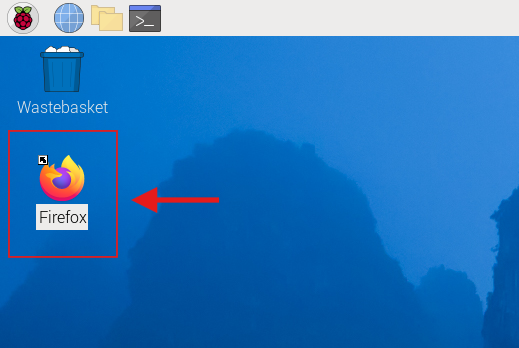
The DinghyRacing page has been saved as the default so the browser will open to this page.
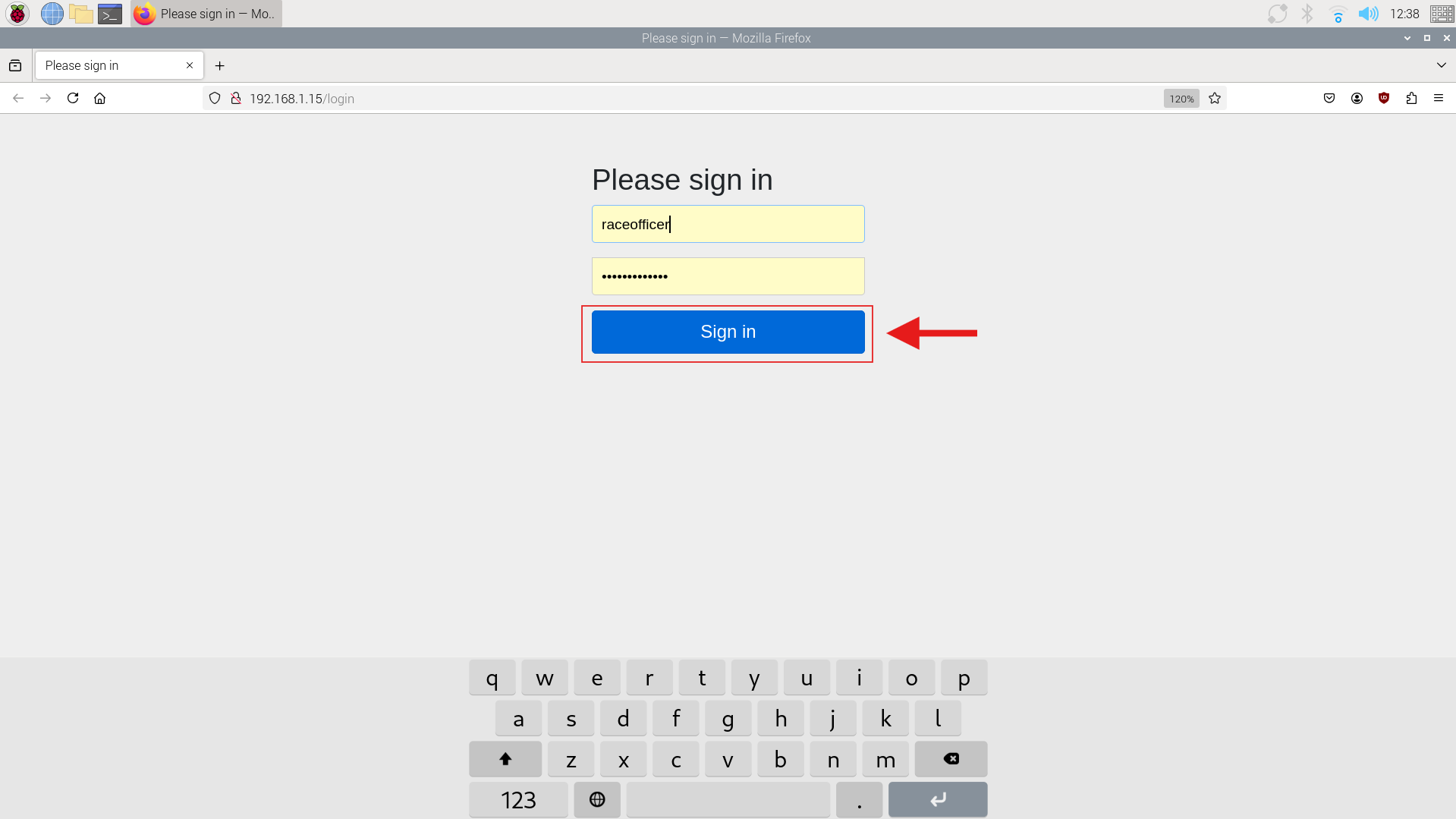
The username is raceofficer.
Login details have been saved so you should be able to just click ‘Sign in’.
Starting races
Select ‘Race Start’ from the menu bar.

Set session window
Select the session window by setting the start and end times for ‘Session Start’ and ‘Session End’.
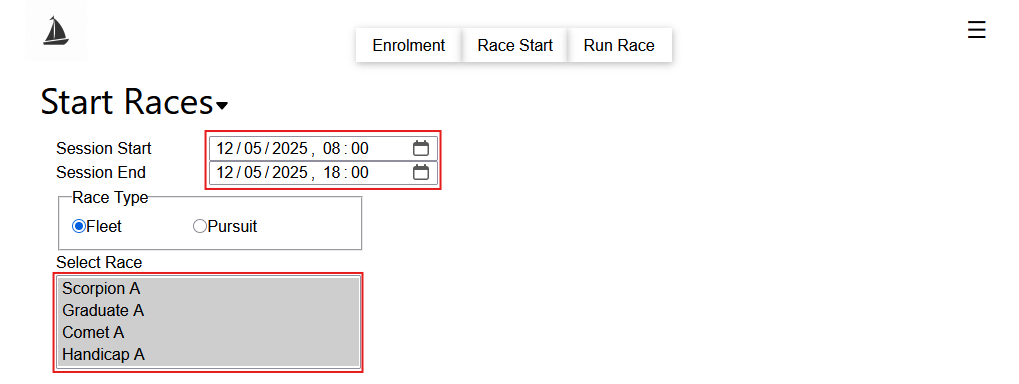
DinghyRacing will calculate a combined start sequence for all races of the selected type in this window.
Races in the start sequence are shown and highlighted in the ‘Select Race’ selection box.
Races can also be selected, and deselected, using the ‘Select Race’ selection box.
- Left click a race to select only that race.
- Ctrl + left click to add or remove that race from the start sequence.
Start countdown
The ‘Start Countdown’ section shows the countdown to the start of the next race. The race is named under the clock.
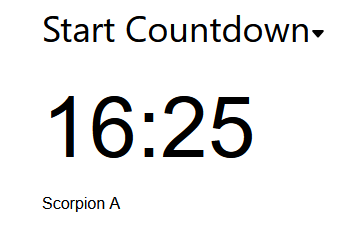
On each second of the last 10 seconds the screen’s speakers will emit an audible ping.
After the countdown reaches 0:00 it will start to countdown to the start of the next race in the sequence, if there is one.
Flags state indicator
The flags section shows the current state and time to the next change for each flag in the start sequence.
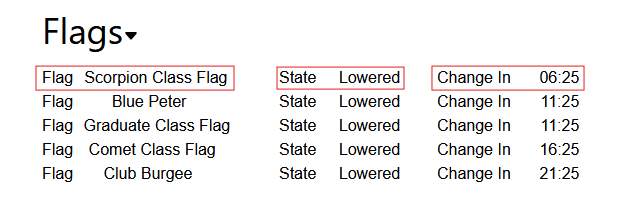
60 seconds before a flag change a double ‘gong’ is emitted through the screen speakers.
At the time of the flag change a long ‘ping’ is emitted.
Race information
The Races section shows each race in the start sequence, the number of laps set, target duration, and a countdown to the start.
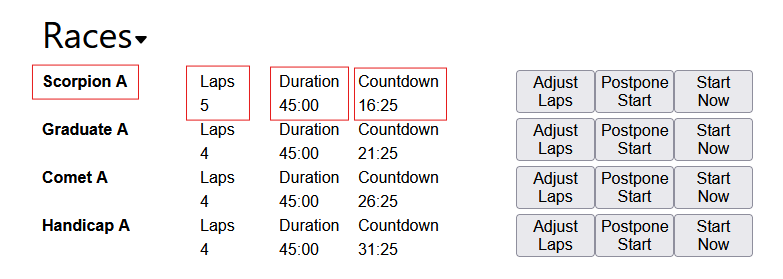
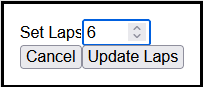
Adjust laps
The ‘Adjust Laps’ button allows the number of laps set for the race to be increased or decreased.
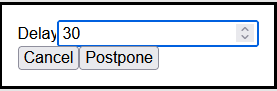
Postpone start
The ‘Postpone Start’ button allows the start of the race to be moved back, the value set is the number of minutes to postpone the race from its current start time. If the race is scheduled to start at 11:00, postponed for 10 minutes, and then postponed for 5 minutes it will start at 11:15.
Start now
The ‘Start Now’ button will set the start time of the race to the time at which the button is clicked starting the race. All lap times for entries in that race will be calculated from the time at which the button is clicked.
Actions list
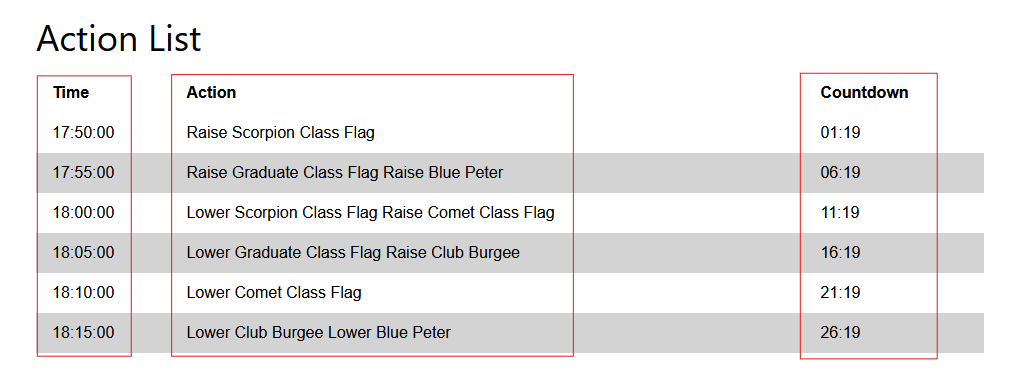
The Action List section shows for each action in the starting sequence the time of the action, a description of the action, and a countdown to the action.
Hiding sections
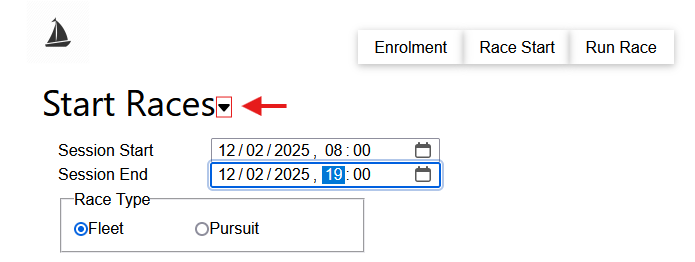
Sections can be hidden, or shown, by clicking on the small arrow to the right of the section name.
Starting pursuit races
The process for starting a pursuit race is the same as the process for a fleet race.
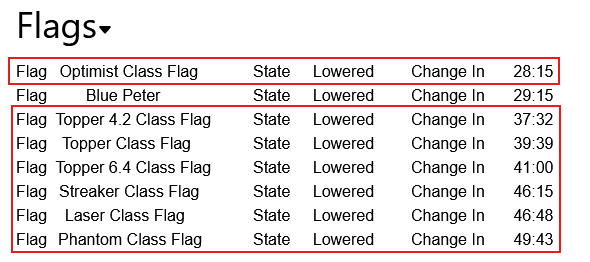
The main difference is the flags state indicator will show a flag timing for each class starting in the race.
Set session window
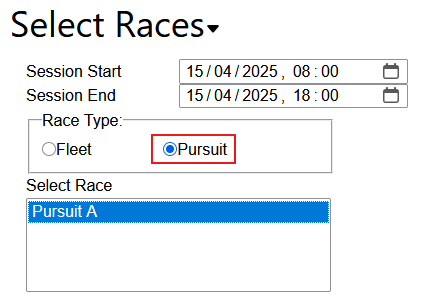
Select the Pursuit Race option.
Flags state indicator
The first class flag shown for the start is for the slowest dinghy class in the fleet set for the race; or the slowest dinghy class for a dinghy entered in the race.
Timings for the flag changes for the race start, the class flags, and the preparatory flag are based on the start type set for the race; 10-5-Go or 5-4-1-Go.
For later starts a flag raise will be shown for the class 60 seconds before the start for that class. At the start time for that class DinghyRacing will signal a flag lower.
(The 60 seconds to flag change sound warning is not made for flag changes after the race starts.)
Each later flag, after the preparatory flag, is for a class with a dinghy entered in the Race. Starts are not shown for allowed classes that have no entry in the race.
Actions List
The Actions list shows the start time for each class and the lower flag action for that class.
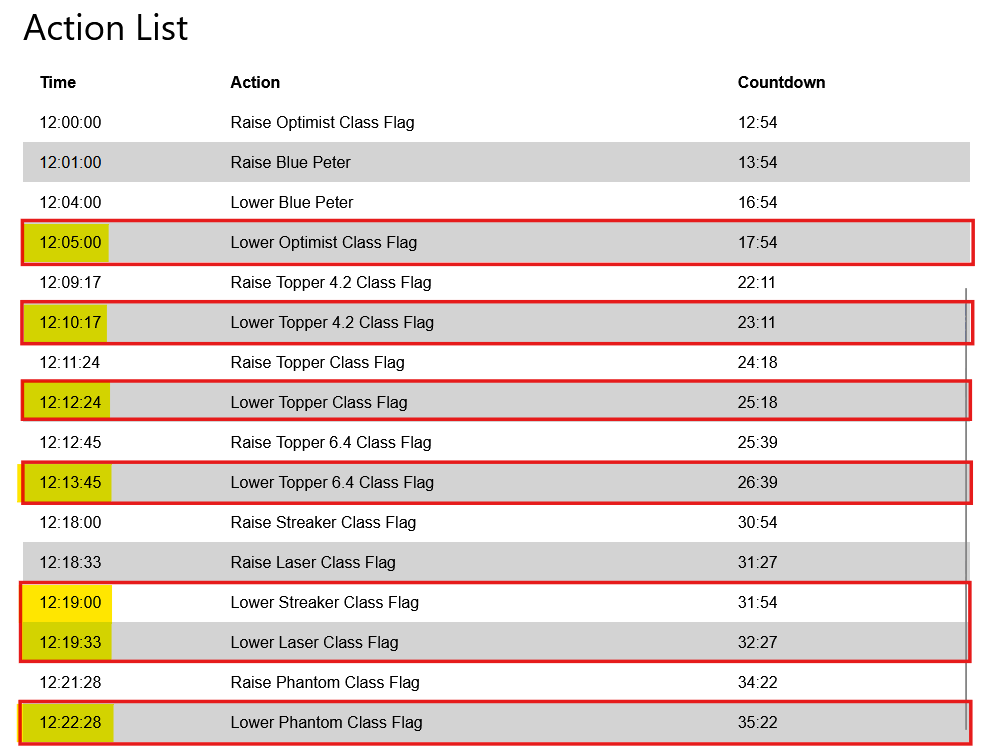
Change the starting class
The start time for each class in a pursuit race is calculated based on the relative handicap of the slowest class of boat in the race and every other permitted class.
If the slowest allowable class is changed to a faster class the time sailing for other classes will increase as their starting offset from the first class is reduced.
This can be achieved by changing the classes in the race fleet.
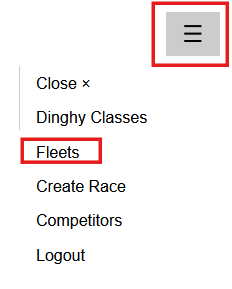
Log into the system using the Scheduler login and select Fleets from the secondary menu.
Select the fleet you want to change by clicking on it in the list of displayed fleets.
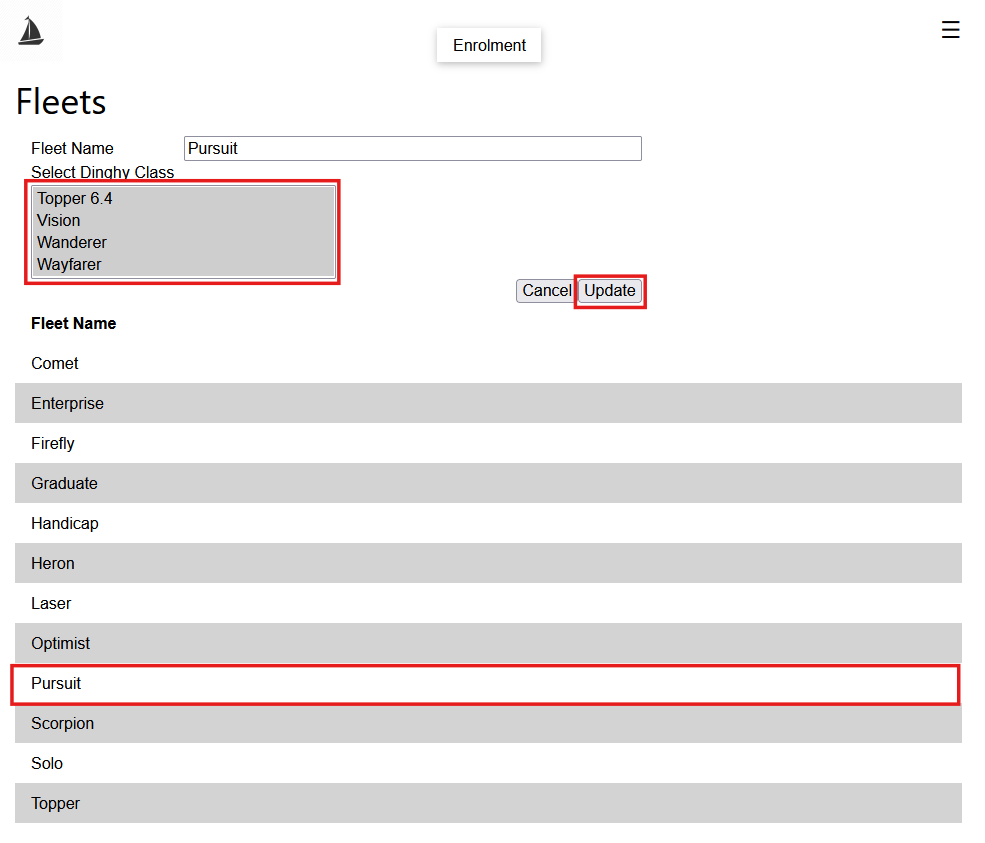
Remove any classes you do not want to sail in the pursuit race from the Select Dinghy class field (ctrl + left click).
When you have removed the classes you no longer want click update.
After the update people will no longer be able to sign in with a dinghy in any class that has been removed from the list.
Pre-existing entries will not be affected. If someone has signed up to sail a Topper and Topper is removed from the list of allowed classes they are still signed up as an entry in the race.
The start times for all classes will be updated to reflect the new handicap of the first class to start.
Printing Lap Sheets
Lap sheets can be printed using the Lap Sheet button in the race information section of the Start Race Screen.

Clicking the button will open a new page in the browser with a web page that can be sent to the printer.
The Lap Sheet button is also available in the race information section of the run race screen.
Running races
Select ‘Run Race’ from the menu bar.

Select races
The races for which to display entries are selected in the ‘Select Race’ section at the top of the screen.
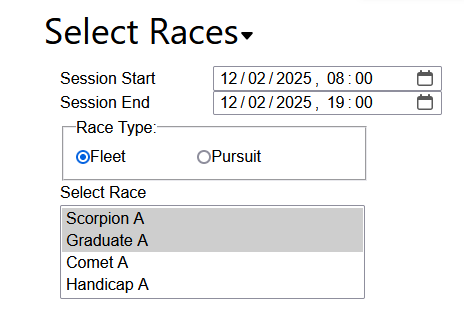
The available races can be filtered by selecting the session window using ‘Session Start’ and ‘Session End’. The ‘Select Race’ list will only show races that start within the time window set.
Select the type of the race to show races of that type that start within the session window.
To select a race click on it in the ‘Select Race’ section.
Multiple races can be selected by holding down the left mouse button as you drag the mouse cursor over the races or by using ctrl + left click.
Once you have selected the races you can hie the Select Races section using the small arrow to the right of the section heading.

Race information
Before the race starts
Buttons for ‘Postpone Start’ and ‘Start Now’ will be available. These work in the same way as they do on the ‘Start Race’ screen.

DinghyRacing also shows the number of laps set for the race, the planned duration, and the countdown to the start of the race.
After the race starts
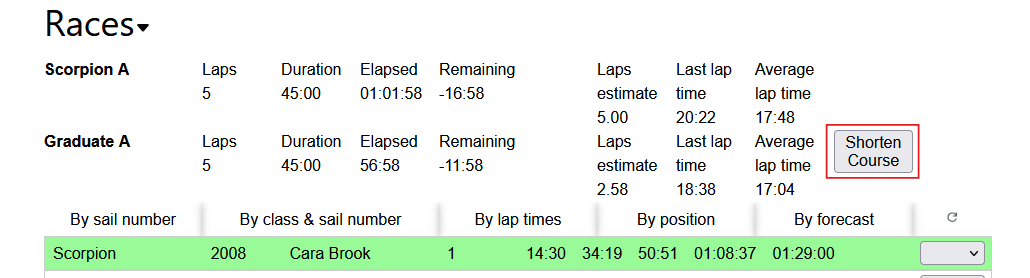
DinghyRacing will show the elapsed time for a race and the time remaining.

After an entry has completed a lap DinghyRacing will also show an estimate for the number of laps that the lead boat will sail in the planned duration, the last lap time for the lead boat, and the average lap time for the lead boat.
The ‘Shorten Course’ button allows you to tell DinghyRacing you have reduced the number of planned laps for the lead boats.
The Races information section can be toggled visible/ hidden by clicking the small arrow next to the section heading.

Restart Race
After a race has started the Postpone Race button will change to Restart Race.
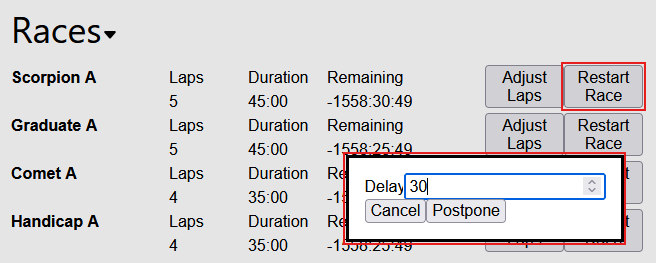
Clicking ’Restart Race’ will provide the option to reset the start of the race by a number of minutes from the previously scheduled start.
If a general recall is needed this can be used to reset the start of the race until after the other races have been started.
After a lap has been recorded for a race the Restart Race option will no longer be available on the Race Start console.
Shorten Course
If a race is shortened DinghyRacing can be updated; click the Shorten Course button and update the number of laps set.
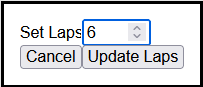
(This option will only allow the laps set to be reduced. To increase the number of laps use the Adjust laps button on the race start screen.)
Race Entries
Sorting Entries
Entries can be sorted using the button above the list of entries for the selected races.
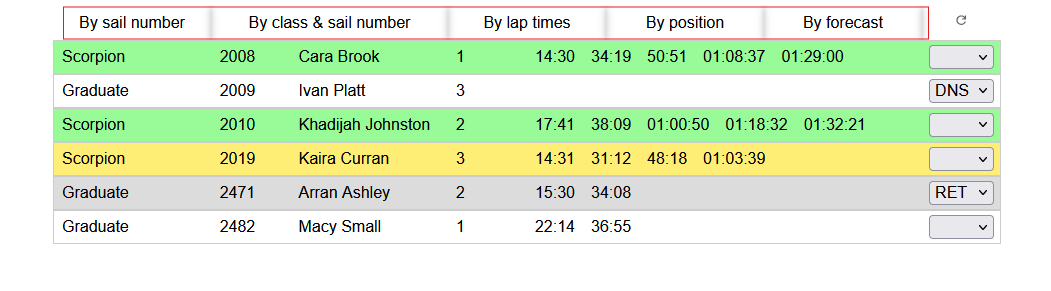
Hopefully, the sort order is self-explanatory for most options.
During the first lap of the race ‘By forecast’ will sort entries so the fastest entries, based on handicap, will be at the top.
‘By position’ sorts by position. For a handicap race this is calculated based on handicap and so will differ from ‘By lap times’.
Manual ordering
Drag and Drop
Entries can be dragged from their position in the list to another position. Hold down the left mouse button and move the mouse to drag the entry.
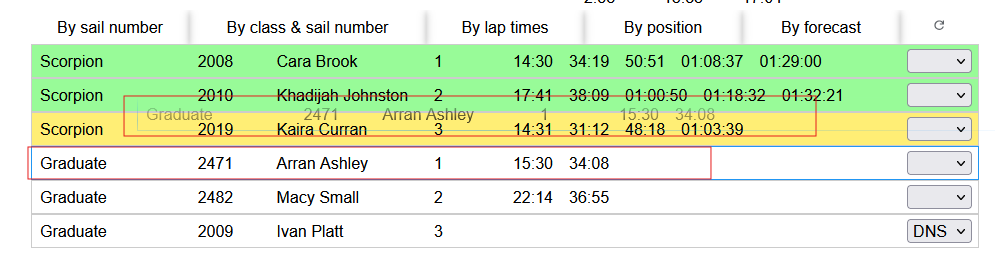
If dragging an entry up the list the entry it is dropped on will be pushed down one row to make room.
If dragging an entry down the list the entry it is dropped on will be pushed up the list.
In a pursuit race dragging and dropping will change the position of the entry in the race. (This is best done when the entries are sorted by position.)
Fast group
Entries can be fast grouped using the checkbox to the right of each entry. When the box is checked entries will be placed at the top of the list in the order the boxes are checked; first entry check at the top, second entry checked second, third etc.
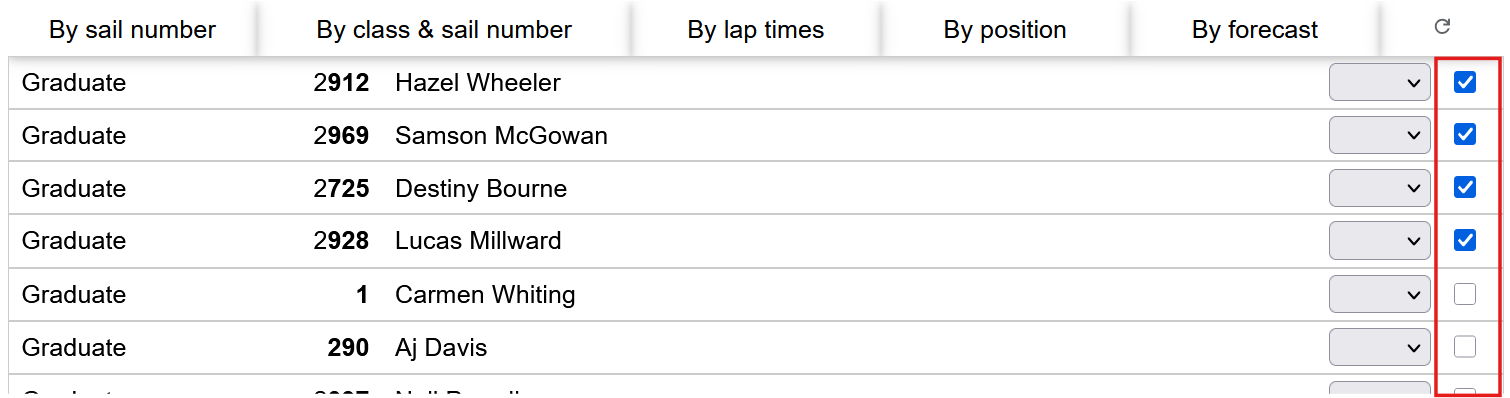
If an entry is unchecked it will return to its previous place in the list based on the last sort order selected.
Entries can be dragged and dropped into, and out of, the collection of fast grouped entries. The check box will be updated accordingly.
The order of entries in the fast group collection can be amended by dragging and dropping the entry to move.
Recording lap times
Click on an entry with the mouse, or tap the screen, to record a lap for the entry.
DinghyRacing will record the time elapsed from the start of the race to the end of that lap and update the display to show the new lap.
After you record the lap time the entry will be briefly disabled while the time is recorded.
Deleting a lap
To delete a lap hold ctrl + left click the entry, the last recorded lap will be removed.
On a touch screen swipe left on the entry to delete the last lap time.
Editing the last lap time
Right click an entry to enter edit mode for the last recorded lap time.
- Hours, minutes, and seconds should be separated by a colon, e.g. 1:15:23.
- To confirm the updated time press enter.
On a touch screen edit mode can be engaged by holding a press on the entry.
To cancel edit mode press escape or click/ tap anywhere outside the entry been edited.
Last Lap and Finished
Entries on their last lap, if sailing the number of laps set for the course, will be highlighted in yellow.
Entries that have finished, have sailed the number of laps set, will be highlighted in green.

Scoring Abbreviations
A scoring abbreviation is recorded against an entry using the drop down on the right-hand end of the entry.

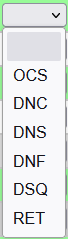
OCS – On course side
DNC – Did not compete
DNS – Did not start
DNF – Did not finish
DSQ – Disqualified
RET – Retired
Finishing a Race
There is no action to mark a race as finished.
Entries that have sailed the number of laps set for the race will not accept any more laps.
Any entries that have been finished having sailed less laps will have their positions calculated based on the number of laps recorded.
Running pursuit races
Many of the steps for running a pursuit race are the same as for a fleet race.
The main difference is in in the effect of manually ordering entries using drag and drop.
Manual Ordering and position
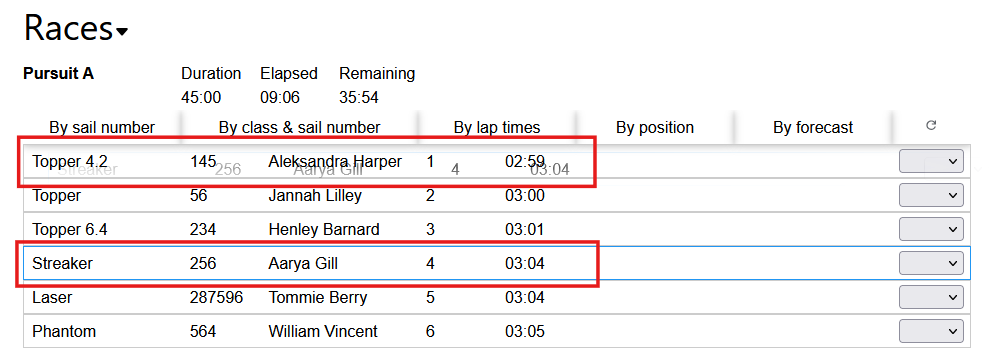
During a pursuit race rearranging the order of an entry using drag and drop will assign the dragged entry to the position previously held by the entry it is dropped on.
This enables you to track the position of boats on the water, and their position in the race, without having to wait for them to complete a lap. Supporting the final check of positions at the end of the race.
It is still recommended that laps are recorded as it makes it easier to see where one boat has lapped another.
Before drop:
After drop:
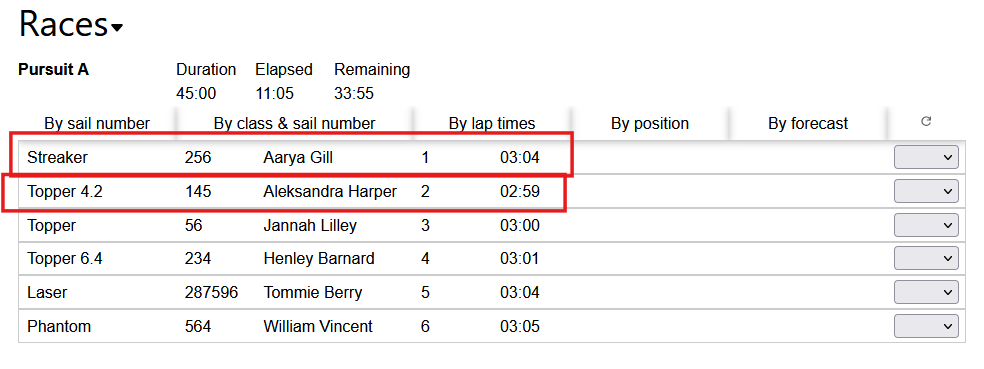
It is recommended entries are sorted by position when using this mechanism as it makes the impact of the drag and drop operation clear.
Download Results
- Open Dinghy Racing
- Login as raceofficer
- Select Menu Icon
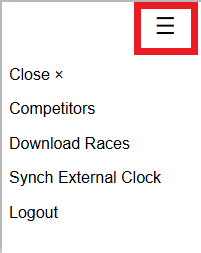
<
- Select Download Races
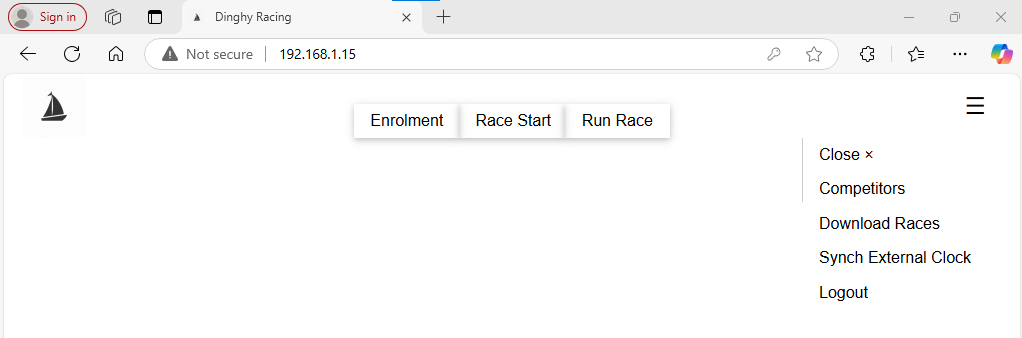
- Select Start and End Session as needed.
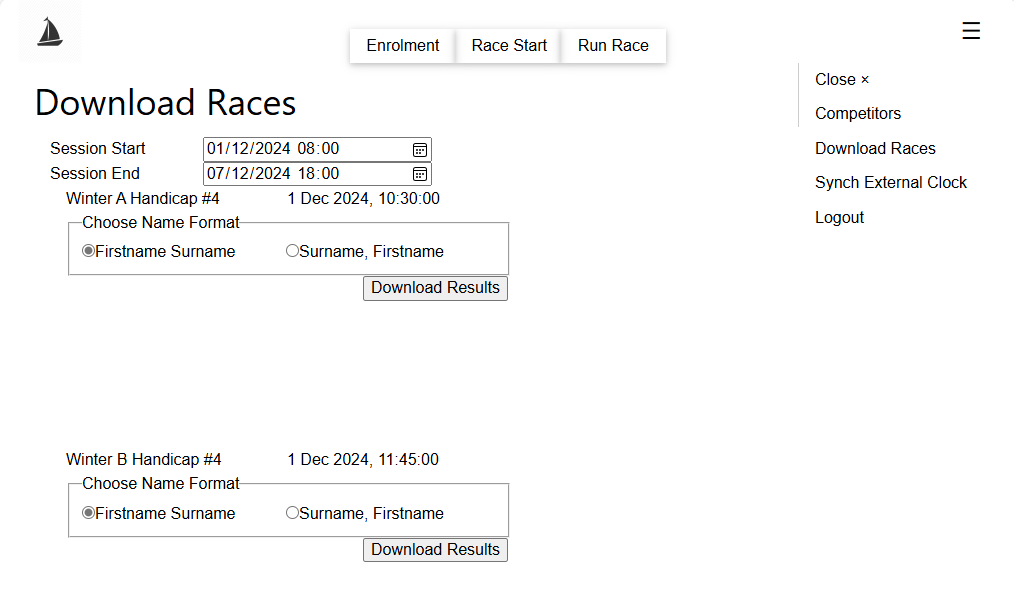
- Select Download Results for required race(s).
Print Race Results
- Select the following icon on the desktop.
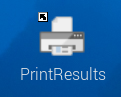
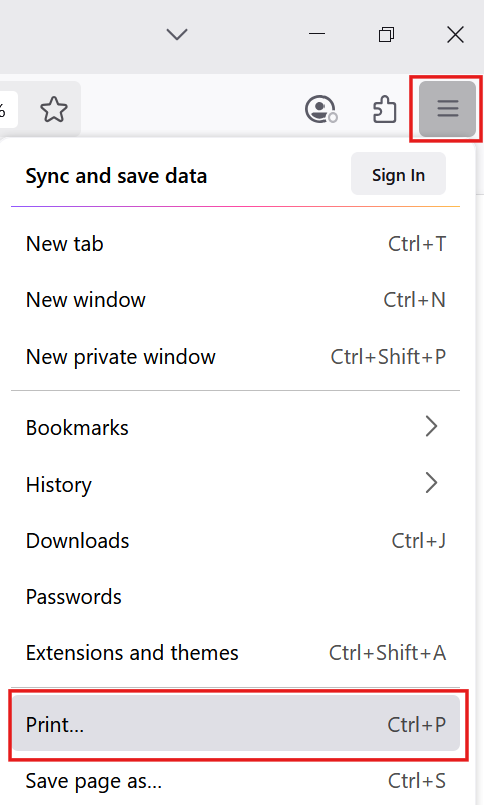
Or select  on the Web Browser Toolbar
- Select Choose File
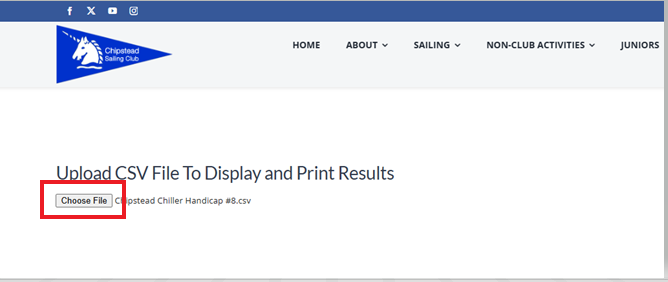
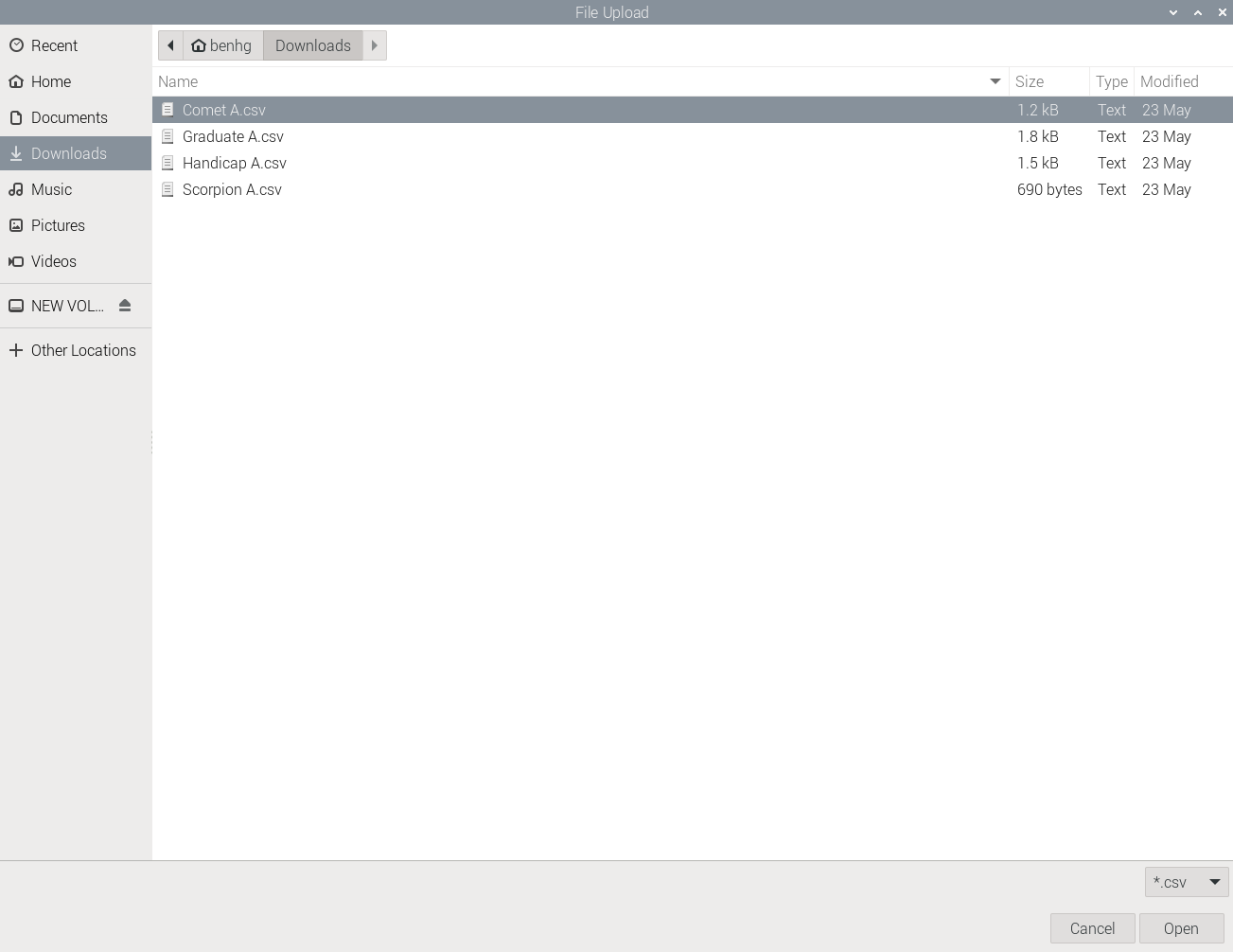
- Select race to open from the Dropbox Downloads folder – Should open direct to Downloads folder (homerace1Downloads)
- Select Print Results
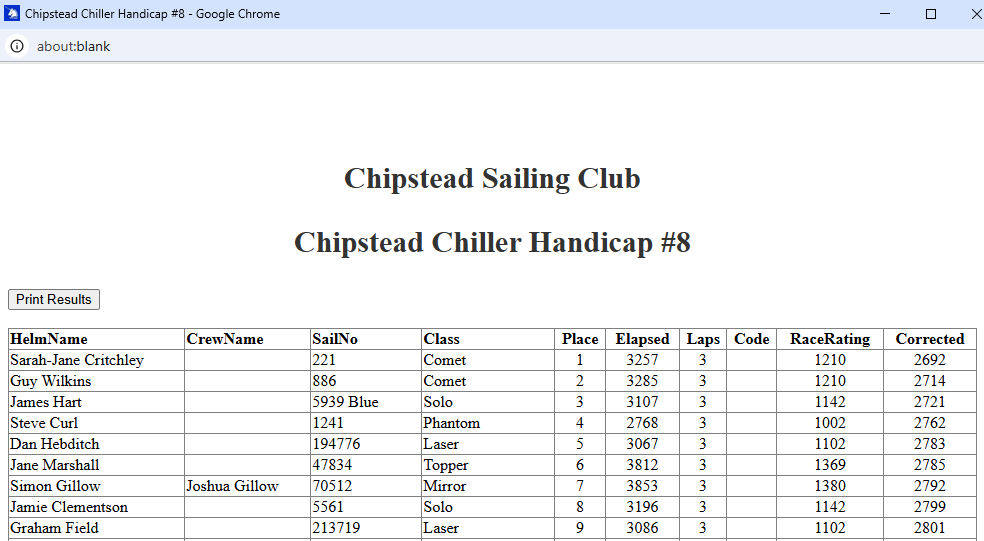
Destination – should default to committee room printer.
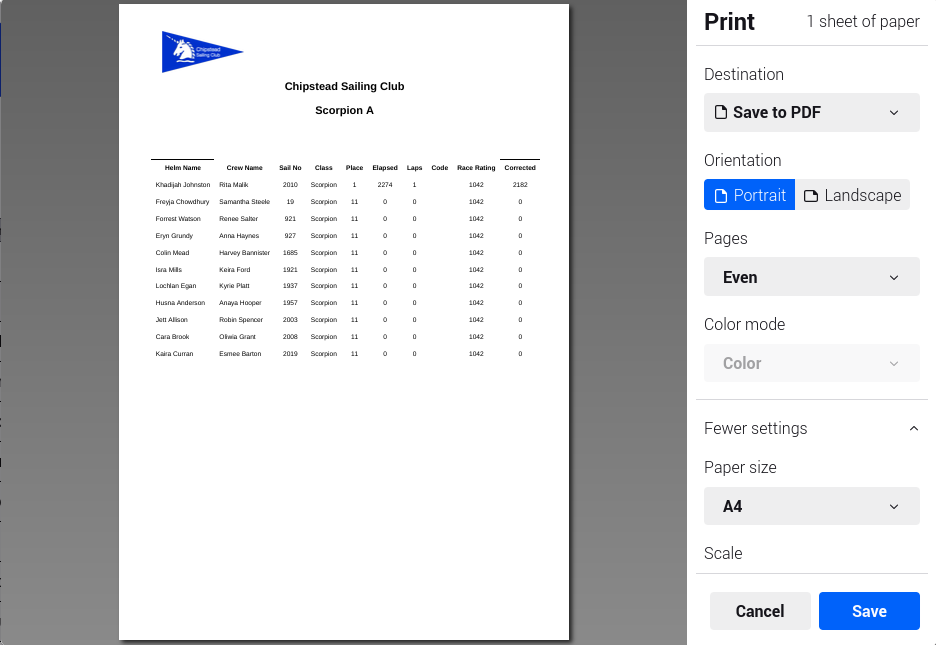
Pages – set to even to avoid a blank first page (results will fit twenty-seven boats to a page)
Click Print
- Repeat as required for all races to be printed.
Transfer Results to Sailwave
The last step is to transfer the results so they can be loaded into Sailwave and published to the website.
! This process can only be completed using the right hand Raspberry Pi !
Double Click the UploadResults icon on the desktop.

A console will open and display progress during the transfer of the results. When this closes the transfer has been completed.
Shutting Down
Please ensure the Raspberry Pis in the Race Hut are shutdown correctly before turning off the power at the wall or to the Race Hut.
(This reduces the risk of corruption to the file system that would result in the need for them to be rebuilt.)
The Shutdown option is available via the Raspberry icon on the top right of the screen.
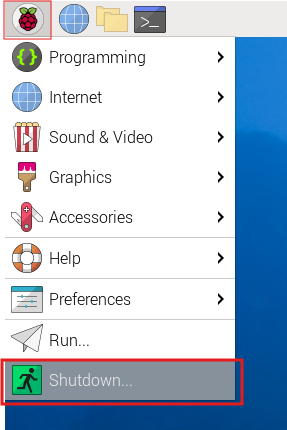
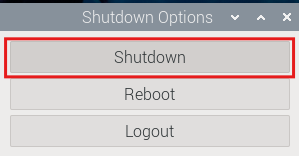
Click Shutdown and then on the next menu confirm Shutdown.